

Introduction:
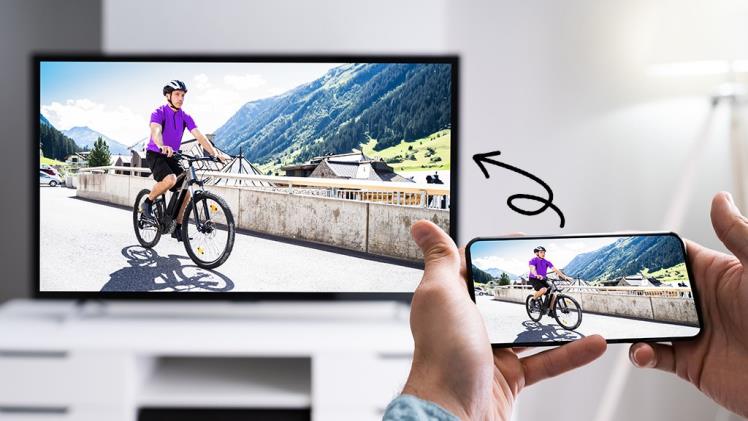
In the era of smart technology, our smartphones have become powerful tools that extend beyond traditional communication. One of the remarkable features is the ability to cast content from your Android phone to your TV, transforming your living room into a multimedia hub. This article will guide you through the process of casting to your TV, offering step-by-step instructions and tips for a seamless streaming experience.
Understanding Casting Technology:
Before delving into the details, it’s essential to understand the technology behind casting. Casting involves wirelessly transmitting multimedia content from one device to another, such as streaming videos, photos, or even mirroring your phone screen on a larger display. The technology responsible for this seamless connection is often referred to as casting or screen mirroring.
Choosing the Right Casting Device:
To initiate casting from your Android phone to your TV, you need to have a compatible casting device. The two most common options are Google Chromecast and Smart TVs with built-in casting capabilities. If you have a Chromecast, ensure that it is properly set up and connected to the same Wi-Fi network as your Android device. If your TV has built-in casting, make sure it is activated and ready to receive content.
Enabling Casting on Your Android Device:
The casting feature on your Android phone may vary slightly depending on the device model and Android version. However, the general steps remain consistent. To start, ensure that both your phone and casting device are connected to the same Wi-Fi network. Then, follow these steps:
- Open the Settings app on your Android device. b. Select “Connected devices” or a similar option, depending on your phone model. c. Tap on “Connection preferences” and then choose “Cast” or “Screen mirroring.”
Selecting Your Casting Device:
Once you’ve enabled casting on your Android device, a list of available casting devices will appear. Select your TV or Chromecast device from the list. If prompted, confirm the connection on both your phone and TV by accepting the pairing request.
Casting Content to Your TV:
With the connection established, it’s time to cast your desired content. Whether it’s a video, photo slideshow, or a specific app, the process is relatively straightforward:
Open the content you want to cast on your Android device. b. Look for the cast icon, which typically resembles a rectangle with Wi-Fi waves in the corner. c. Tap the cast icon and select your TV or Chromecast device from the list.
Your content should now start playing on the larger screen, providing a more immersive and enjoyable viewing experience.
Troubleshooting and Tips:
While casting is generally a smooth process, occasional hiccups may occur. Here are some troubleshooting tips to ensure a seamless streaming experience:
Check Wi-Fi Connection: Ensure that both your Android device and casting device are connected to the same Wi-Fi network. b. Update Apps and Firmware: Keep your casting apps and firmware updated to the latest versions for optimal performance. c. Restart Devices: If issues persist, try restarting both your Android device and casting device. d. Disable VPNs: Virtual Private Networks (VPNs) may interfere with casting. Disable them temporarily and try again. e. Quality Settings: Adjust the quality settings in your casting app to match your network capabilities for smoother streaming.
Conclusion:
Casting from your Android phone to your TV opens up a world of entertainment possibilities, turning your living room into a multimedia center. With the right casting device, a stable Wi-Fi connection, and a few simple steps, you can enjoy your favorite content on the big screen hassle-free. Follow this comprehensive guide, and elevate your streaming experience with the magic of casting technology.
